
Introduction
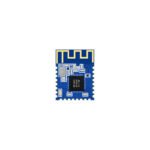
Bluetooth technology has revolutionized wireless communication by enabling seamless data exchange between devices without physical cables. Bluetooth modules serve as the bridge between hardware components and wireless networks, offering flexibility in various applications from smart home systems to industrial automation. This guide provides a comprehensive overview of configuring and using Bluetooth modules effectively, focusing on general principles rather than specific models.
Understanding Bluetooth Module Basics
Bluetooth modules operate on master-slave communication principles. The master device initiates connections, while the slave responds to requests. This dynamic allows for diverse applications such as connecting smartphones to microcontrollers or enabling inter-device communication. Modules can be configured as either master or slave, depending on project requirements, offering adaptability in design.
Preparing for Configuration
Before diving into configuration, gather essential tools: a microcontroller board (like Arduino), a Bluetooth module, a USB cable, and a computer with an integrated development environment (IDE). Initial settings often include a default baud rate of 9600, no parity, and one stop bit. However, for real-time data monitoring, a higher baud rate (e.g., 115200) is recommended to reduce latency and enhance efficiency.
Step-by-Step Configuration Process
1. Entering Command Mode
To configure a Bluetooth module, you must first access its command mode. Follow these steps:
- Circuit Setup: Connect the module to your microcontroller. Link the microcontroller’s RX pin to the module’s TX pin and vice versa. Use a voltage divider if necessary to prevent damage from higher voltages.
- Powering Up: Apply power to the module while holding down a button (if available). If the module’s LED flashes at a specific interval (e.g., every two seconds), you’ve successfully entered command mode.
- Microcontroller Setup: Upload an empty sketch to the microcontroller and disconnect the RX/TX lines temporarily to avoid interference during configuration.
2. Using AT Commands
AT commands are essential for configuring module parameters. Here’s how to use them:
- Serial Communication: Use a serial monitor tool (like Arduino IDE’s Serial Monitor) or a third-party application. Set the baud rate to the module’s default (e.g., 9600) initially.
- Basic Commands: Start with simple commands like
ATto check connectivity. If the response isOK, proceed to more complex commands. - Key Configuration Commands:
AT+NAME=<name>: Rename the module for easy identification.AT+PSWD=<password>: Set a secure password for pairing.AT+UART=<baudrate>,<parity>,<stop>: Adjust the baud rate, parity (None or Even), and stop bits (1 or 2).AT+ROLE=<0|1>: Set the module as slave (0) or master (1).AT+CMODE=<0|1>: Enable automatic connection (1) or manual pairing (0).
- Testing: After each command, reboot the module to apply changes. Test connectivity by sending data via the serial monitor.
3. Pairing Devices
Once configured, pairing involves:
- Master-Slave Setup: Ensure one device is set as master and the other as slave.
- Connection Process: On the master device, initiate a search for available Bluetooth devices. Select the slave’s name and enter the password if prompted.
- Verification: Check LED indicators on both modules. A solid light indicates a successful connection.
Practical Applications
Bluetooth modules are widely used in:
- Educational Projects: For wireless control of robots or sensors in Arduino-based systems.
- Smart Home Integration: Enabling remote control via smartphone apps.
- Industrial Systems: In scenarios requiring reliable wireless communication for monitoring or automation.
Troubleshooting Common Issues
- Connection Failures: Ensure devices are within range and configured correctly. Check for interference from other wireless devices.
- AT Command Unresponsiveness: Double-check the baud rate and wiring connections.
- Data Transmission Errors: Verify parity and stop bit settings for consistency.
Conclusion
Configuring Bluetooth modules involves entering command mode, using AT commands to set parameters, and ensuring proper pairing between master and slave devices. By following this guide, you can effectively integrate Bluetooth technology into your projects, enhancing functionality and convenience. Whether for educational purposes or industrial applications, mastering Bluetooth module configuration opens up a world of wireless possibilities, enabling innovative solutions without the constraints of physical cables.